PitchSmart uses essential cookies to keep the platform running. With your permission, we also use analytics cookies to improve the product. We never sell your data. See our Privacy Policy for details.

    Back to blog
    smtp icloud settingicloud mail setupapp-specific passwordsmtp port 587icloud smtp troubleshooting

    SMTP iCloud Setting: A Practical Setup Guide for 2026

    Get the right SMTP iCloud setting for any mail client. Learn server, port, authentication, app-specific passwords, and fixes for common send failures in 2026.

    July 27, 2026/13 min read
    SMTP iCloud Setting: A Practical Setup Guide for 2026

    If your iCloud sender is stuck in Outbox while replies are landing elsewhere, the problem usually isn't “email” in the abstract. It's a transport or authentication mismatch between the client and Apple, and that's exactly where outbound teams lose time, especially when they're already juggling manual research, generic cold copy, and sequence maintenance across too many tabs. The fastest fix is usually not another resend, it's getting the SMTP iCloud setting right once, then using a clean diagnosis order so your team stops guessing.

    When Your iCloud Send Suddenly Stalls

    The classic moment looks like this. An SDR launches a sequence, replies are coming in, then a fresh iCloud sender won't push a single message out of Outbox. The team assumes deliverability has broken, but the actual issue is usually lower down the stack, between the mail client, Apple's submission server, and the credential it's trying to use.

    That distinction matters because iCloud Mail uses the modern SMTP submission model, not a legacy open-relay style setup. Apple's community guidance confirms that SMTP authentication is required, SSL is required, and the account name has to be the complete address, not just the local part, while independent setup references keep pointing to the same core values for years. Those stable settings are why iCloud keeps working across many clients, but they also hide the failure point when sending stops.

    What usually breaks first

    Most failed sends fall into three buckets. The first is the wrong port or security mode, the second is a missing or stale app-specific password, and the third is an environment block such as a firewall, VPN, or client setting that never selected iCloud as the outgoing account.

    Practical rule: if the message is stuck before it leaves the client, treat it as a transport or authentication problem before you blame copy, domain reputation, or inbox placement.

    For outbound teams, that order saves time. Instead of changing three settings at once, you can test the server path first, refresh the credential second, and only then look at the network or client layer. That's the diagnosis path used by people who wire iCloud into tools all day, not by people who only configure it once and hope it sticks.

    The Core SMTP Values You Actually Need

    Here's the small set of values that keeps showing up in iCloud SMTP guidance and support references, and it's the same set you'll use in Apple Mail, Outlook, or a third-party sender. The outgoing server is smtp.mail.me.com, the preferred secure submission port is 587, and the connection should use STARTTLS or TLS. If 587 is blocked or fails SSL negotiation, 465 is the documented fallback with SSL.

    Setting Value Notes
    SMTP server smtp.mail.me.com Standard iCloud outgoing host
    Port 587 Preferred modern submission port
    Security STARTTLS or TLS Use for secure submission
    Fallback port 465 Use if 587 is blocked or won't negotiate SSL
    Username Full iCloud email address Use the complete address, not just the local part
    Authentication On SMTP auth must be enabled
    Password App-specific password Use this instead of the normal Apple ID password

    The username field is where a lot of people slip. Apple community documentation says the account name must be the complete address, for example johnappleseed@icloud.com, not just johnappleseed. If you're using a mailbox alias or a custom-domain sender, that distinction becomes even more important.

    How to read the values correctly

    Port 587 is the normal path because it's the standard submission port for modern mail clients. STARTTLS upgrades the connection after it starts, which is why many guides pair those two values together. Port 465 still works in the fallback case, but it's the exception path, not the default.

    The other value that matters is the password type. Apple doesn't want your normal Apple ID password in a third-party mail client, it wants an app-specific password. That matters operationally because a client can keep retrying the wrong secret and still look “configured,” while the actual failure is just authentication.

    If the client offers both “SSL” and “TLS,” the safest first test is usually 587 with STARTTLS. Only move to 465 if the first path is blocked or fails to negotiate.

    Generate an App-Specific Password the Right Way

    iCloud SMTP setup only works cleanly when two pieces are in place. Two-factor authentication has to be enabled on the Apple ID, and then you need an app-specific password for the exact mail client or device you're connecting. Apple's setup flow separates that credential from the normal sign-in flow on purpose, and new Apple IDs generally have 2FA enabled by default.

    The shortest path is simple. Sign in at Apple ID security settings, open App-Specific Passwords, create a labeled password, and paste the generated string into the client's password field. A label like Outlook on laptop or Smartreach sender makes later cleanup easier when someone leaves the company or a tool gets retired.
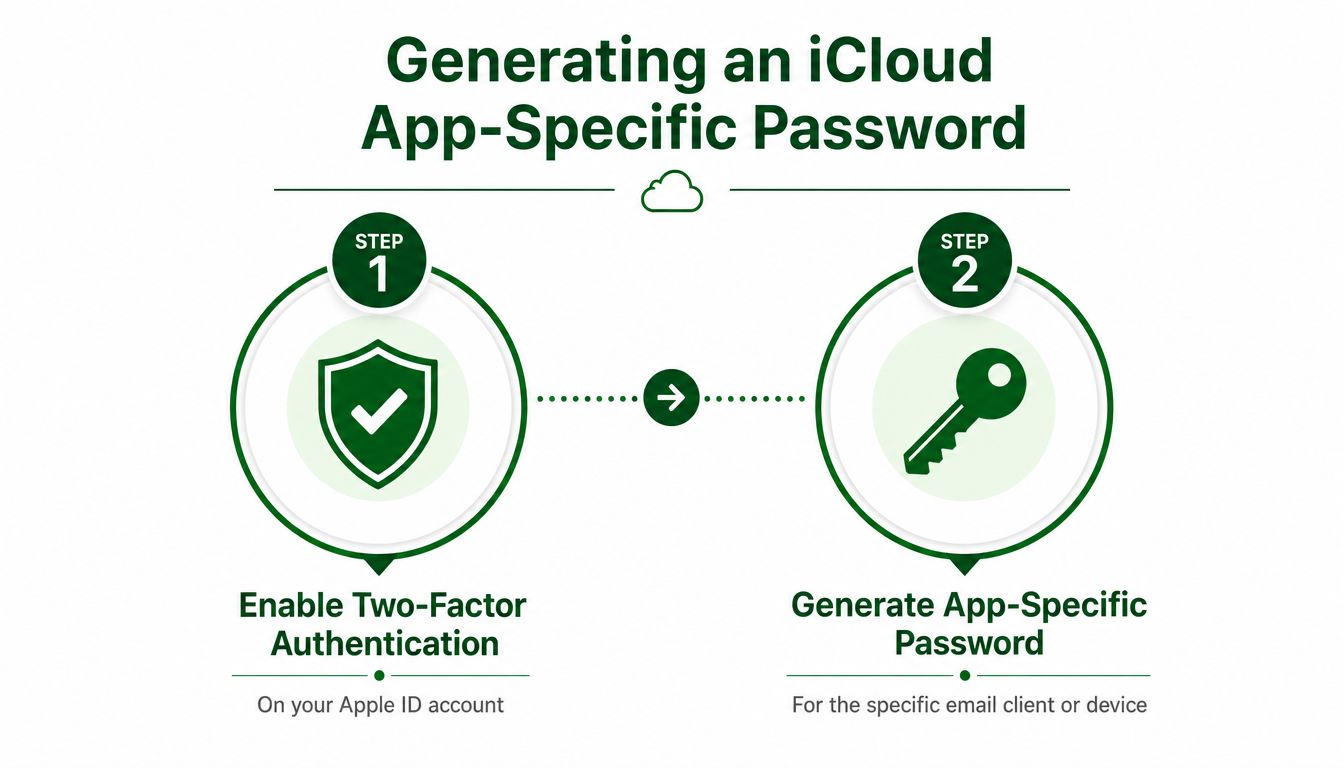
    A two-step infographic explaining how to generate an iCloud app-specific password for third-party email clients.

    Why fresh credentials matter more than retries

    A stale app password can fail even when every visible setting looks correct. If a client cached a bad credential, or if the old app password was revoked, the fix isn't to click send again, it's to generate a fresh app-specific password and re-enter it.

    This is the part that saves the most time in practice. Many “SMTP is broken” tickets are really credential refresh tickets, especially after password changes, security resets, or a migration from one machine to another. Reusing the normal Apple ID password won't solve it, because iCloud Mail expects the app-specific secret for third-party clients.

    Operational lesson: when send fails after a recent credential change, regenerate the app password before you touch ports or server names.

    That's especially useful for outbound teams. A rep can lose half an hour to server tinkering when the fix was a new app password all along, and the sequence doesn't move until the credential is corrected.

    Wiring iCloud SMTP Into Apple Mail, Outlook, and Third-Party Senders

    Apple Mail usually fails for a boring reason, not a hard one. The iCloud account is present, the server values are right, but iCloud isn't selected as the Outgoing Mail Account under Mail > Preferences/Settings > Accounts > Server Settings, so the message sits in Outbox. Apple's own support discussions flag that exact check, and Edit SMTP Server List won't show the iCloud account as an option there.
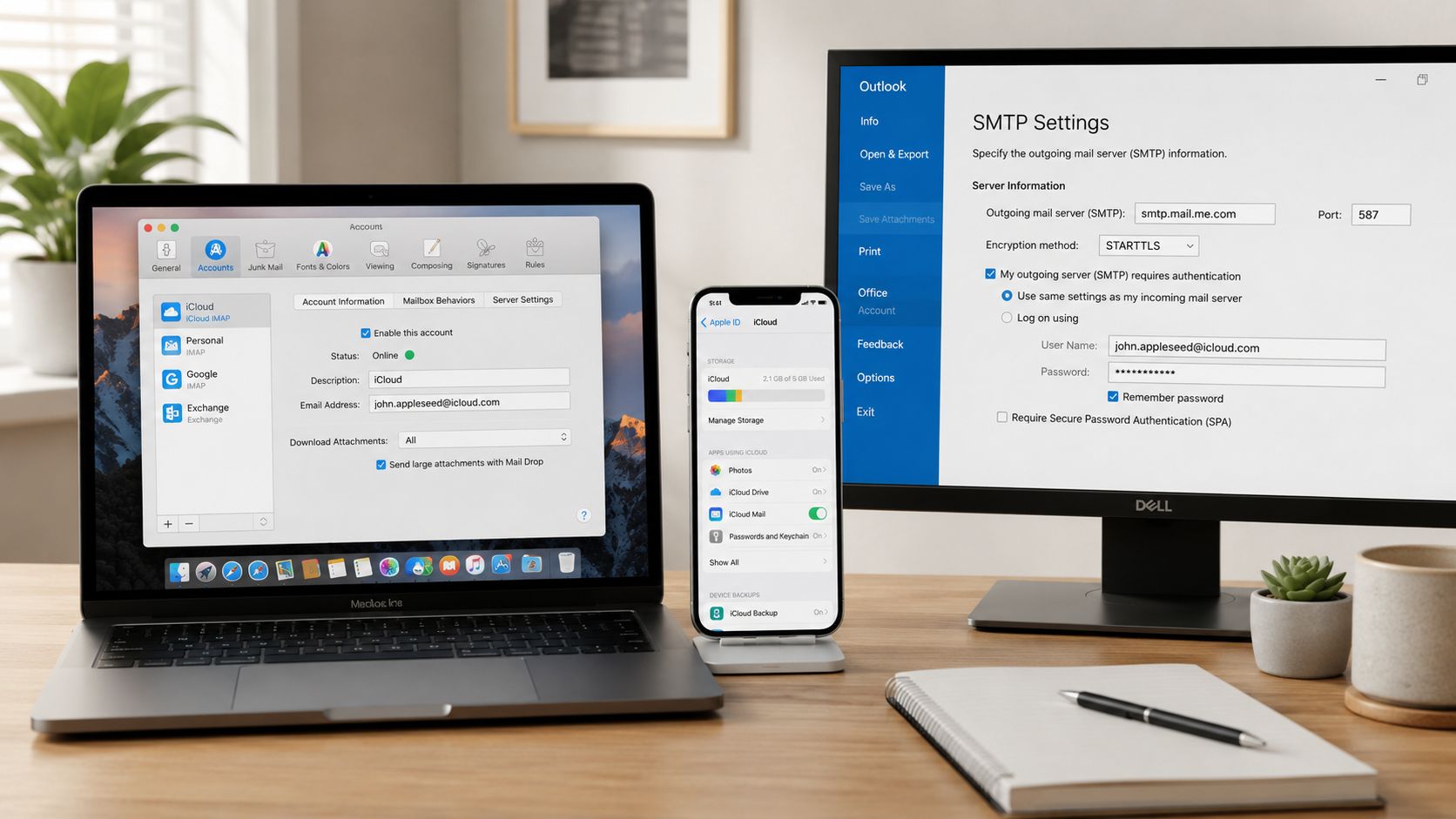
    A workspace featuring a laptop, smartphone, and desktop monitor displaying various email account and SMTP server settings.

    Apple Mail and Outlook follow different paths

    In Apple Mail on macOS, go straight into the account-specific server settings and confirm iCloud is the outgoing account. Don't waste time inside the generic SMTP list if the message refuses to leave Outbox, because that screen isn't where iCloud gets bound to the account.

    In Outlook, the iCloud account often needs to be added manually under POP or IMAP rather than auto-detected. The Microsoft guidance for iCloud setup keeps the same outgoing host, smtp.mail.me.com, with SMTP authentication enabled, 587 as the normal port, and Use same settings as my incoming mail server checked. The same Microsoft reference also notes 25 as a fallback if 587 is blocked in a specific environment, which is a contingency, not the default.

    Third-party senders are simpler on the server, stricter on the credential

    Tools like Smartreach, Instantly, or a custom outreach app still point to smtp.mail.me.com. The server doesn't change, but the app-password story gets more important because those tools tend to cache credentials aggressively and retry automatically.

    That means you want to label each app-specific password by tool, not by person alone. If one tool starts failing, you can revoke just that password instead of disrupting every sender tied to the same Apple ID.

    The values don't change from client to client. The path to the outgoing-server field changes, and that's where most setup friction lives.

    A quick client comparison

    Client What usually trips people up
    Apple Mail iCloud not selected as the outgoing account
    Outlook Manual setup under POP or IMAP, plus authentication settings
    Third-party sender Cached credential and app-password rotation

    The Two Traps Standard Guides Skip

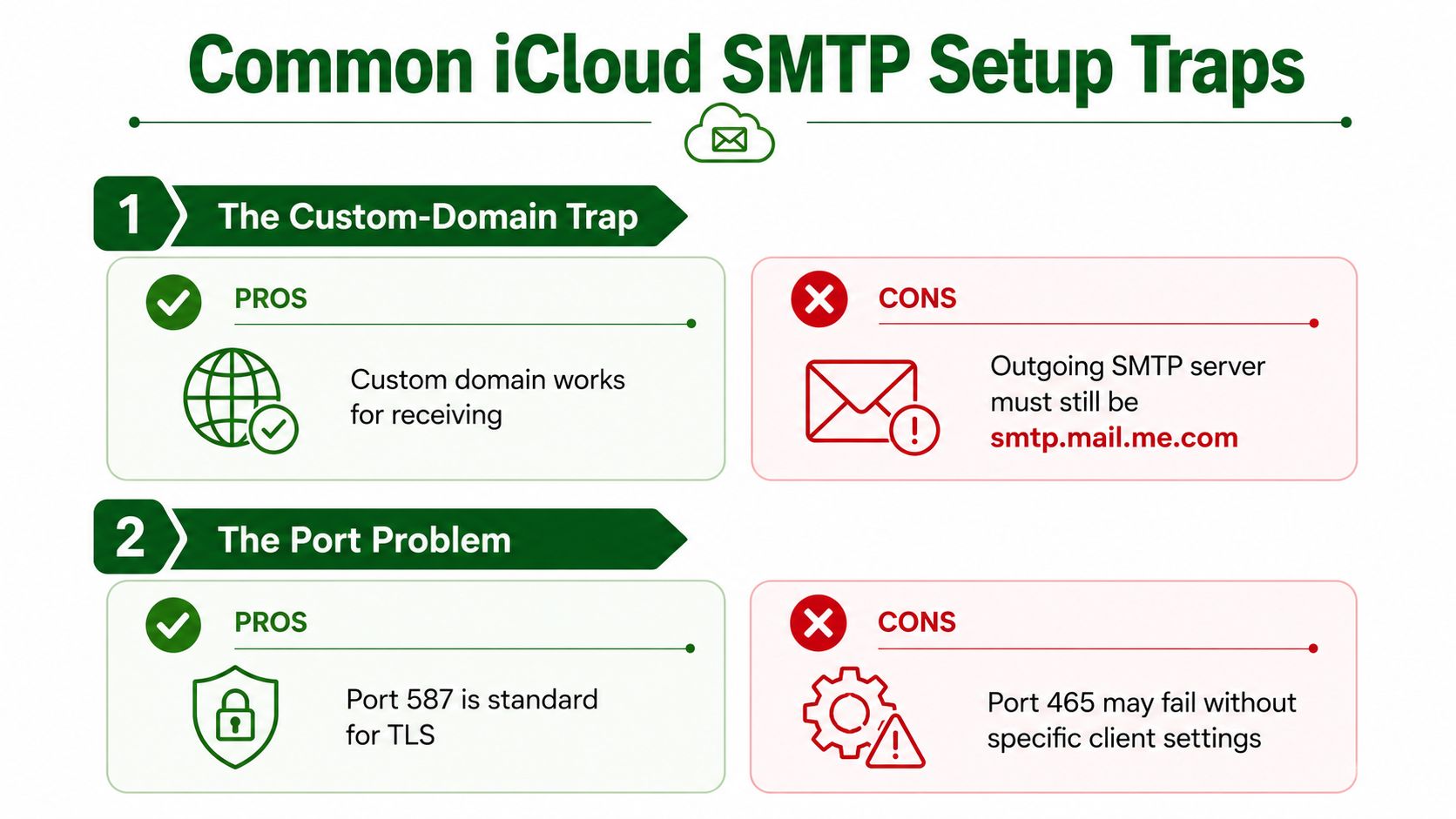
    The first overlooked trap is the custom-domain username problem. Apple's support discussions show that when iCloud Mail is configured with a custom domain, the outgoing SMTP server still uses the standard iCloud setup, but the login must use the iCloud address, not the branded custom-domain address. Many public guides repeat the server and port values, then leave out that one detail, which is why a sender can look “right” and still fail authentication.

    The second trap lives inside Apple Mail on Mac. Even with the correct server, port, and password, mail won't send if iCloud isn't chosen as the Outgoing Mail Account in the account-specific server settings. If you only go looking in Edit SMTP Server List, you can miss the actual binding point entirely.

    Why these traps matter to outbound teams

    Both failures create the same symptom, a message that won't leave the client. But the root causes are different. One is an identity mismatch, the other is a client-side routing choice.

    That's why “wrong settings” is usually shorthand, not a diagnosis. In practice, it often means wrong username or wrong outgoing account, not a bad port number. Once you start separating those two, support tickets get shorter and send tests get faster.

    An infographic showing common iCloud SMTP configuration traps including custom domain limitations and email port requirements.

    Use the mailbox address for login, even when the sender identity is branded differently. That one detail prevents a lot of unnecessary testing.

    The custom-domain nuance is especially easy to miss because the receiving side can work fine while SMTP authentication still breaks. Outbound teams notice the issue only when a test send fails, which is exactly when they need the fastest possible diagnosis.

    Diagnosing the Send Failures That Look Like Configuration Errors

    The cleanest way to debug an SMTP iCloud setting is to sort failures by category, then test one thing at a time. Start with the port and security mode, then the app password, then the environment. That order matches how iCloud failures usually present in real mail clients.

    Start with the transport path

    If 587 doesn't work, retry with STARTTLS first, then fall back to 465 with SSL if a firewall, VPN, or client policy blocks the preferred path. Some technical guidance even mentions 25 as a last-resort fallback in restricted environments, but that's an exception path, not the normal setup.

    Refresh the credential next

    If the server path looks fine but sending still fails, regenerate the app-specific password and re-enter it. That's the right move when the client cached a bad secret, when an old password was revoked, or when a password change happened outside the mail tool.

    Check the environment and client routing

    Corporate firewalls, VPNs, and security software can interfere with outbound submission, even when the client settings are correct. In Apple Mail, the fastest confirmation is making sure iCloud is selected as the Outgoing Mail Account in the account-specific server settings, because the message can sit in Outbox if that binding isn't set.

    A current troubleshooting pattern in support content is clear. Newer guidance keeps emphasizing app-specific passwords, TLS/STARTTLS, and fallback to 465 when networks block the preferred route, which means many failures are transport or policy issues rather than mistakes inside the mail client itself. That's the contrarian piece most generic guides skip.

    Diagnosis order that usually works: port, password, environment. If you reverse that order, you spend more time changing values that weren't broken.

    Setup Checklist and How It Fits Into Outbound Workflow

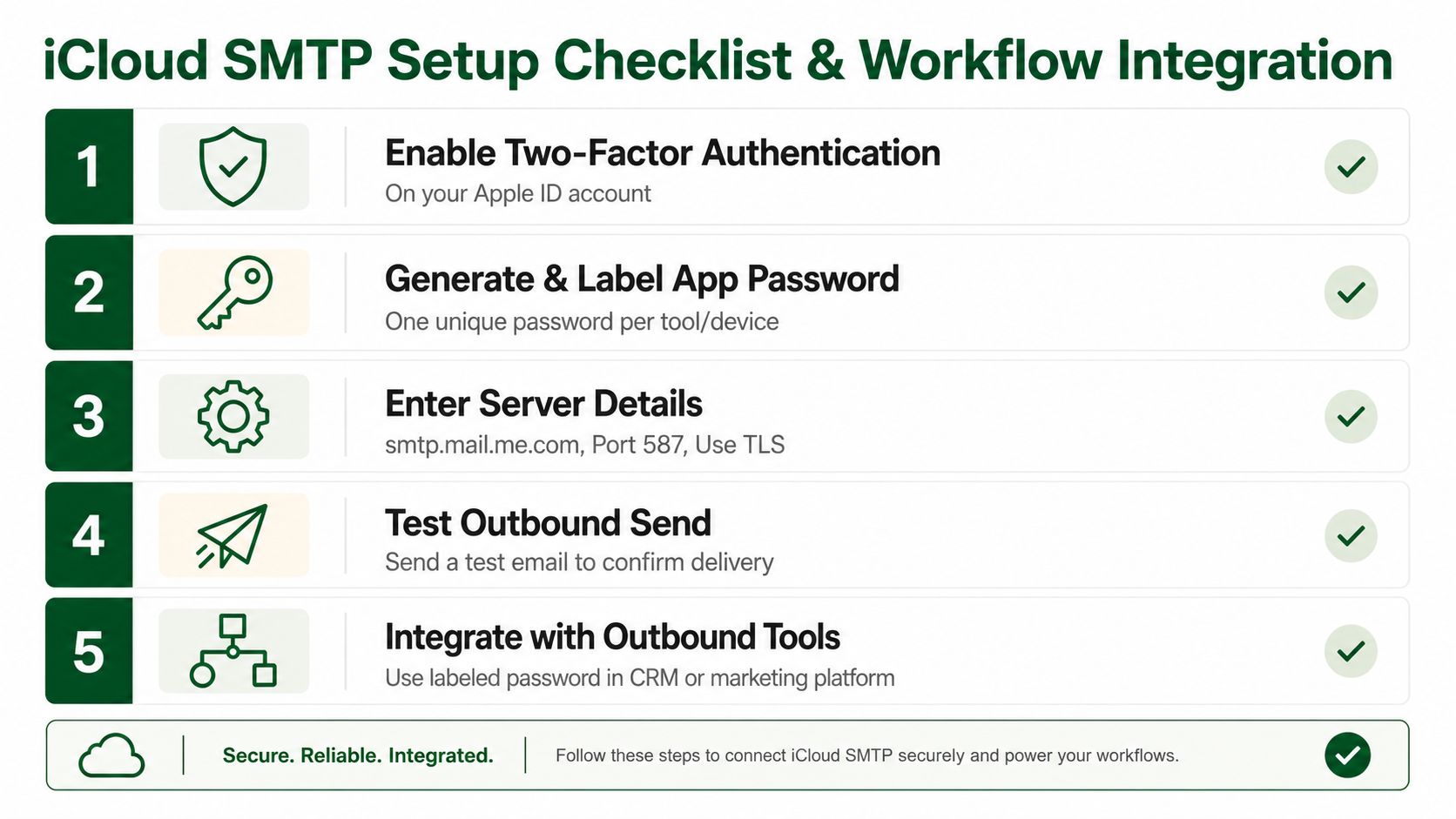
    A clean setup checklist keeps people from re-testing the same mistakes. Use this sequence in your internal docs and you'll avoid most of the trial-and-error that slows down a campaign launch.

    • Enable Two-Factor Authentication. Confirm the Apple ID has 2FA on before you touch any mail client.
    • Generate and label an app-specific password. Create one unique password per tool or device so you can revoke it later without breaking everything else.
    • Enter the server details. Use smtp.mail.me.com, 587, and STARTTLS as the first pass.
    • Use the full iCloud address as the username. Don't shorten it, and don't swap in a custom-domain address if the account is keyed to iCloud login.
    • Confirm iCloud is the Outgoing Mail Account. In Apple Mail, check the account-specific server settings rather than hunting through the generic SMTP list.
    • Send a test message. Verify that the message leaves the client before you roll it into a live sequence.
    • Switch to 465 only if 587 is blocked. Treat that as the fallback, not the standard path.

    A five-step instructional checklist for setting up iCloud SMTP server details to integrate with external software.

    The operational point is bigger than email settings alone. A reliable sender only helps if the message itself is worth sending, and that's where research quality matters for SDRs and RevOps teams. PitchSmart is one option for turning a prospect list into signal-backed outreach by bulk researching accounts, segmenting by buying signals, and generating hooks from recent activity, so the emails that finally leave Outbox aren't just more volume.


    If you want your team to stop losing time to manual prospecting and generic first lines, visit PitchSmart and see how it ties account research, buying signals, and outbound sequencing into one workflow. Then pair that with a working iCloud SMTP setup so every send that goes out has a real reason to earn a reply.

    Table of contents

    • When Your iCloud Send Suddenly Stalls
    • What usually breaks first
    • The Core SMTP Values You Actually Need
    • How to read the values correctly
    • Generate an App-Specific Password the Right Way
    • Why fresh credentials matter more than retries
    • Wiring iCloud SMTP Into Apple Mail, Outlook, and Third-Party Senders
    • Apple Mail and Outlook follow different paths
    • Third-party senders are simpler on the server, stricter on the credential
    • A quick client comparison
    • The Two Traps Standard Guides Skip
    • Why these traps matter to outbound teams
    • Diagnosing the Send Failures That Look Like Configuration Errors
    • Start with the transport path
    • Refresh the credential next
    • Check the environment and client routing
    • Setup Checklist and How It Fits Into Outbound Workflow

    Keep reading

    More articles

    High Ticket Sales Meaning: A Guide for Outbound Teams
    high ticket sales meaningB2B outboundSDR strategy

    High Ticket Sales Meaning: A Guide for Outbound Teams

    Understand the high ticket sales meaning and strategies for success. Learn how your outbound teams can close bigger deals with our practical guide.

    July 26, 202614 min read
    How to End Business Email: Closings That Drive Replies
    how to end business emailemail sign-offssales email closing

    How to End Business Email: Closings That Drive Replies

    Learn how to end business email with high-converting closings, CTAs, and sign-offs. Includes sales templates, data-backed tips, and common mistakes to avoid.

    July 25, 202614 min read
    What Is an Inside Sales Representative: Role Explained
    inside salesinside sales representativeSDR vs BDR

    What Is an Inside Sales Representative: Role Explained

    What is an inside sales representative - Discover what an inside sales representative does and how the role drives revenue through remote selling in 2026

    July 24, 202616 min read