You're staring at Outlook, Gmail won't load, and the password prompt keeps coming back. The account exists, the inbox is active, and yet gmail in Outlook settings still feels like a small support-ticket trap that eats your morning before you've sent a single message.
For sales teams and ops leads, that friction matters because email is where work happens. Gmail sits at massive scale, with about 1.8 billion monthly active users and roughly 30.7% of the global email client market in independent estimates, so this isn't an edge-case integration. It's a normal cross-platform setup in modern work, especially when a team lives in Outlook but still depends on a Google mailbox, and the sync path has to be correct the first time (Mailmates).
Why Adding Gmail to Outlook Is Now a Daily Setup Task
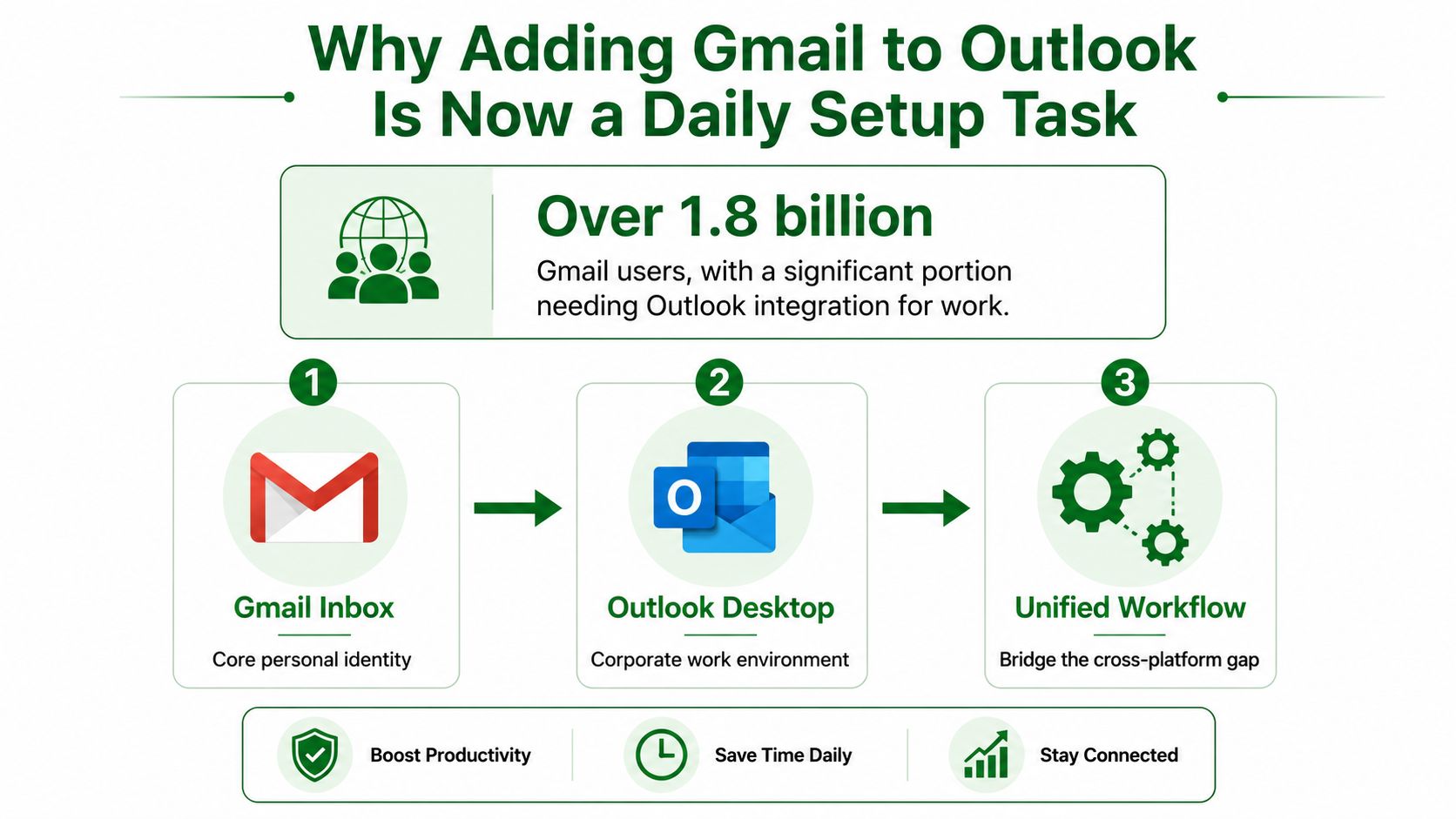
An SDR switches companies on Monday, lands in a Microsoft 365 environment, and still needs the old Gmail identity because customer threads, templates, and calendar context live there. Support hears the same request in different words, how do I make Gmail in Outlook settings work without breaking mail flow or forcing the user to learn a new client on day one?
That request shows up in more than one place. A rep inherits a hybrid stack, an ops lead migrates a team, or a manager gets a managed Windows laptop where Outlook is the approved desktop client and Gmail remains the live mailbox underneath it. The setup is routine because Gmail sits alongside Outlook in day-to-day business use, so Microsoft keeps support paths open across Outlook clients instead of treating Gmail as a special case.
Practical rule: if the user's identity lives in Gmail and their working client is Outlook, the core task is not “adding an account.” It is aligning authentication, sync, and folder behavior so Outlook can speak Google's language cleanly.
That is why the phrase gmail in Outlook settings comes up so often in help desks and internal docs. It usually means the same thing in plain English, a user needs their Gmail mailbox visible, searchable, and synced inside Outlook without losing sent mail, labels, or calendar continuity. The rest of the setup comes down to choosing the right path for the client version in front of you.
Preparing Your Gmail Side Before Outlook Connects
Gmail has to be ready before Outlook can do anything useful. If the mailbox isn't exposing the right protocol, Outlook can click all day and still come back empty, which is why the first pass should always happen inside Gmail itself.
Turn on IMAP first
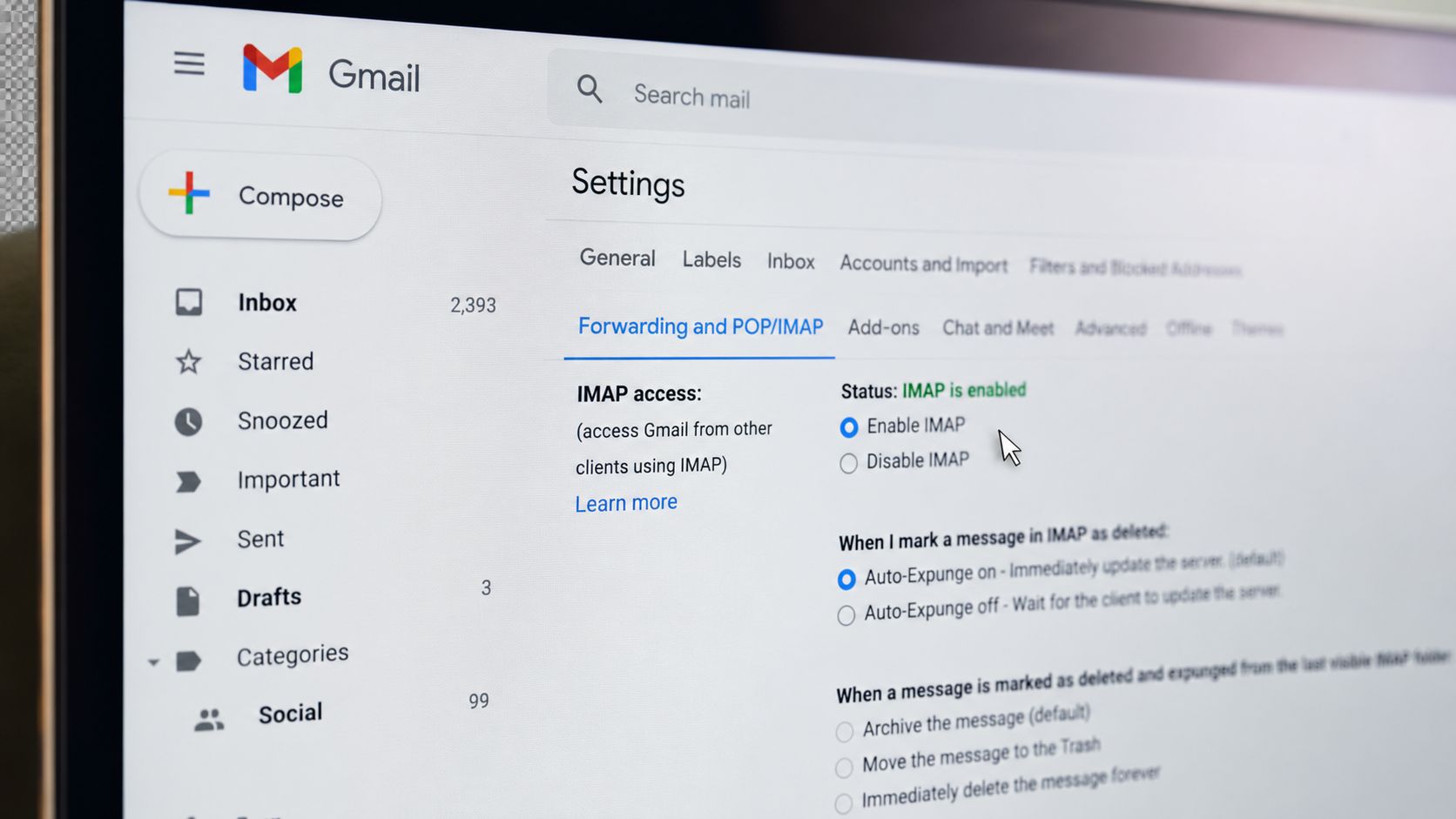
Open Gmail in the browser, go to Settings, then See all settings, then the Forwarding and POP/IMAP tab. Under IMAP Access, enable IMAP and save the change. That toggle matters because Outlook needs a mailbox it can read, and IMAP is the sync path the client expects for a live inbox.
Enable 2-Step Verification before you reach for the password
Next, go to the Google account security area and turn on 2-Step Verification. Once that is active, Google can generate an app password, and that is the credential Outlook may need instead of the regular Gmail password. The app password is a 16-character code, so don't treat it like a normal login string, and keep the Gmail tab open while you move into Outlook so you can paste it without hunting around.
Keep the Gmail tab open until Outlook finishes asking for credentials. If you close the browser too early, users often guess their way through the password field and end up restarting the whole flow.
The order matters. If IMAP is still off, Outlook has nothing to synchronize. If 2-Step Verification isn't enabled, the app password option may never appear, and users usually waste time by retrying the same login with the wrong secret. In support work, that's the difference between a clean setup and a half-hour of avoidable back-and-forth.
Adding Gmail to Outlook on Windows Through the OAuth Flow
On a current Windows build of Outlook, the clean path is the OAuth-based add-account flow. Microsoft's supported route is straightforward, and it avoids manual hostnames when the client is behaving normally (Microsoft support).
Click path for the happy case
Open Outlook, then go to View settings or File > Account info. From there, open Accounts > Your accounts, choose Add account, and pick the Gmail address from the suggested list. Outlook will hand off to Google for permission approval, and the user clicks Allow to authorize the connection.
After that approval, Outlook reports that the account was added successfully. In a healthy state, the account shows up in the account list, and the mailbox begins populating without asking you to type server names, port numbers, or encryption settings.
What should happen next
If the account is added cleanly, the mailbox lands in the folder pane and starts syncing in the background. The point of this flow is not just convenience, it's reducing the number of variables. OAuth handles the trust handshake, so you don't need to troubleshoot protocol fields unless the login path fails and you fall back to manual setup.
That distinction matters in real support work. A user who can connect by OAuth should not be pushed into manual IMAP unless something is broken. Manual settings are for recovery, not for making the everyday path harder than it needs to be.
Using the Manual IMAP and SMTP Setup When Auto Setup Fails
When Outlook's OAuth path stalls, the manual route is the fallback that usually gets the mailbox moving again. In classic Outlook, go to File > Add Account, open Advanced options, check Let me set up my account manually, and choose IMAP for Gmail. Use POP only if you have a specific reason to pull mail down that way, because IMAP keeps the mailbox structure in sync better for day-to-day use (Microsoft Q&A).
Enter the server values exactly
For incoming mail, enter imap.gmail.com on port 993 with SSL turned on. For outgoing mail, enter smtp.gmail.com on port 587 with TLS turned on. Most generic setup pages omit these exact port numbers, causing repeated auth prompts as documented in Microsoft Answers (Microsoft Answers).
The password field should contain the 16-character app password when Google asks for one, not the normal account password. If the user has 2-Step Verification enabled and types the primary Gmail password instead, Outlook can reject the login even when the server names and ports are correct.
Stale OAuth tokens and saved credentials can break a manual retry too. If Outlook keeps looping back to sign-in failures, clear the old Gmail entry from Windows Credential Manager, then add the account again so the client stops reusing a bad token or cached password.
Finish by letting Outlook fully sync
After the account is added, restart Outlook if it asks for it, then let it finish syncing mail, contacts, and calendar before you call the setup complete. I've seen users treat the mailbox as failed while Outlook was still working through the first sync pass after a clean authentication.
Gmail label mapping is the other place manual setups get messy. Outlook does not reproduce Gmail's label behavior perfectly, so some folders may appear differently from what users expect, and that is a sync model limitation rather than a sign that the account is broken. If mail is arriving but folder counts look odd, check whether the Gmail side still has IMAP enabled and whether the relevant labels are exposed for syncing.
| Server |
Hostname |
Port |
Encryption |
| Incoming mail |
imap.gmail.com |
993 |
SSL |
| Outgoing mail |
smtp.gmail.com |
587 |
TLS |
Setting Up Gmail in Outlook for Mac and Outlook.com
A Gmail account can connect cleanly on Mac or in Outlook.com and still feel wrong to the user if the label view, sync depth, or sign-in state is off. The setup itself is straightforward. The part that causes tickets is usually the difference between a successful OAuth sign-in and a mailbox that does not behave the way people expect.
Outlook for Mac
On Outlook for Mac, open Tools > Accounts, then select the plus icon to add an account. Choose Google from the provider list, enter the Gmail address, and complete the Google sign-in flow. If Outlook asks for an app password, use that instead of the normal mailbox password, then approve the requested permissions and wait for the first sync to finish before testing mail flow.
Mac adds one more wrinkle that Windows guides often skip. Folder names and Gmail labels do not line up perfectly in the sidebar, and the client may surface archive and label behavior in a different order than Gmail on the web. That does not mean the account failed. It means Outlook for Mac is translating Gmail's label model into its own folder view, so the result can look familiar without being identical.
If the mailbox connects but keeps prompting again, clear the stale account state before retrying. On macOS, that usually means removing the account from Outlook, checking Keychain for saved Google credentials, and adding the account again so the client stops reusing an old token or cached password. That cleanup step matters when the sign-in screen loops, even though the server settings are already correct.
Outlook.com
Outlook.com uses the connected accounts area, so the click path is shorter. Add the Gmail account there, let Google handle the OAuth sign-in, and wait for Outlook.com to pull the mailbox in. Manual IMAP values are usually unnecessary in the web client because the connection is handled through the browser sign-in flow instead of the desktop fallback path.
Feature parity is still limited. Outlook.com can surface Gmail mail, but it does not reproduce Gmail's label handling, category views, or folder mapping with full fidelity, so the same mailbox can look slightly different online than it does inside the Gmail web app. That is a view-layer limitation, not a broken connection.
If the goal is exact Gmail behavior, Outlook.com will not give it. It is better for access and basic triage than for preserving every Gmail-specific workflow, especially when users rely on labels as their primary filing system.
Troubleshooting the Errors That Block Gmail in Outlook Settings
Most failures come from a short list of mistakes, and the fastest fix is usually to identify the symptom before touching anything else. When Gmail won't add in Outlook, start by asking whether the problem is authentication, sync, or post-setup folder behavior.
Fix the handshake first
If Outlook keeps asking for a password, check whether the wrong credential was pasted into the field. The app password is the one Google wants when 2-Step Verification is enabled, and a normal Gmail password will often fail the handshake.
If the account still won't attach even though the IMAP and SMTP values are correct, Microsoft's current guidance for classic Outlook says to revoke the Google account's existing Microsoft access and delete the cached OAuth2 credentials from Windows Credential Manager before trying again (Microsoft known issues). That cleanup step is easy to miss, and it's exactly the kind of stale-auth problem that basic setup checklists leave out.
Watch for sync stalls and hidden folder problems
A user report in Microsoft's support thread described Outlook synchronizing only 4 emails at a time with Gmail, which is a useful reminder that sync behavior can expose configuration problems in the background (Microsoft support thread). If Outlook is crawling or stalling, don't assume the mailbox is healthy just because it opened.
After setup, folder behavior can still look wrong. Gmail labels need to be exposed through IMAP, Outlook may need subscriptions for missing folders, and large label-based archives can fail to sync cleanly if they exceed a 10,000-item limit (Independent setup guidance). That's also why Outlook's Focused Inbox isn't a true replacement for Gmail categories.
A mailbox can be connected and still look incomplete. In practice, that usually means the auth worked but the folder mapping didn't.
If sent mail or starred mail appears out of order, check the label exposure and folder subscription side before you re-add the entire account. Rebuilding the account is the last move, not the first one.
If your outbound team is still wasting hours on manual prospect research, PitchSmart helps replace that drag with bulk lead research, signal-backed hooks, and automated outreach sequences seeded from the strongest data points. Visit PitchSmart to see how it turns scattered research work into a faster, cleaner outbound workflow.